Photoshop 2026: is this the end of photography?
Photoshop 2026 moves image editing from manual pixel work to AI-assisted work that understands context, with clear rules for commercial use.
· 4 min
Photoshop 2026 changes how image editing works in the first place. Earlier updates mostly improved individual tools, while this version redefines the production logic. The AI now understands context and image content, not just individual pixels you push around by hand.
Technology alone doesn't optimize a workflow. The benefit only shows up when the new tools fit cleanly into the processes you already have. A look at the 2026 version shows Adobe has left the experimentation phase behind. The focus is on efficiency, scalability and the legal certainty agencies pay particular attention to.
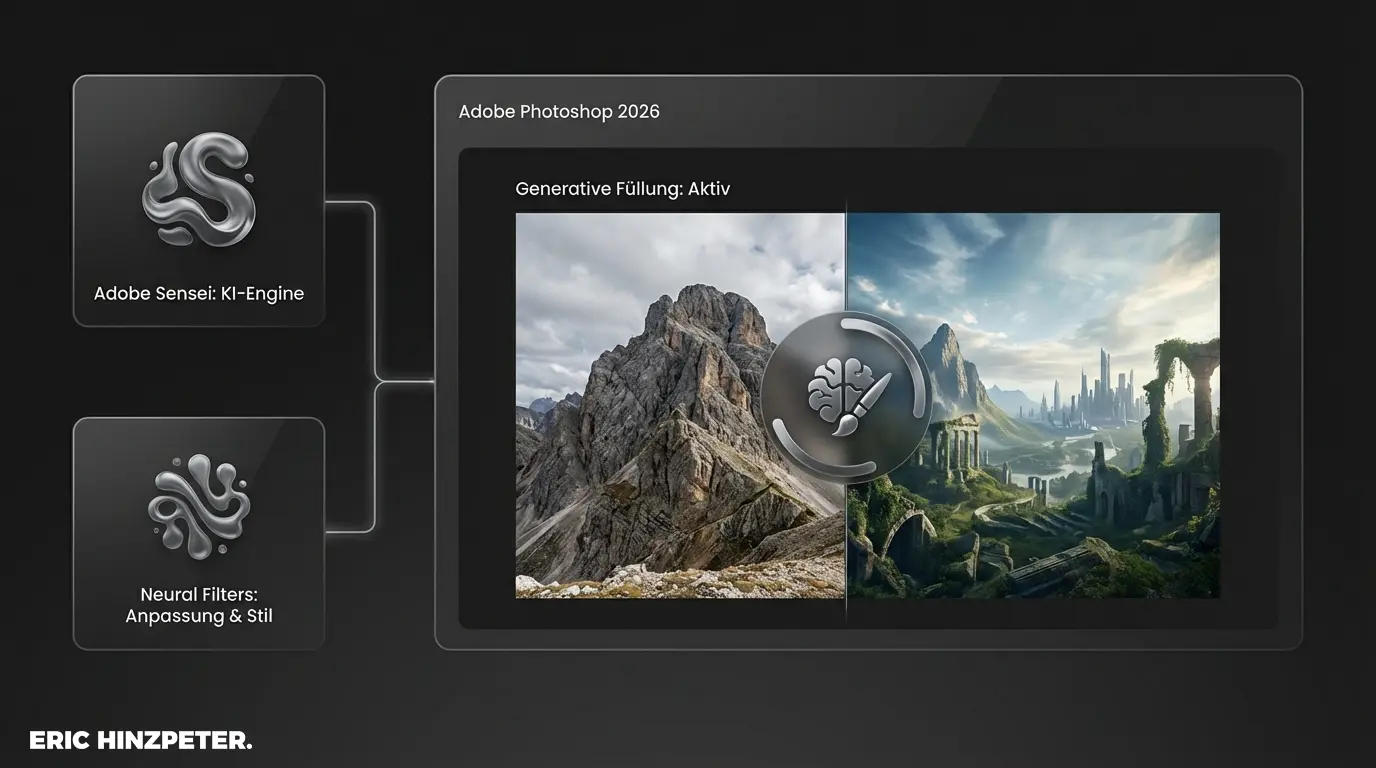
What AI tools Photoshop 2026 brings
Adobe bundles its AI features under the name Adobe Sensei. For everyday studio work in 2026, three building blocks matter most. Creative play comes second here, measured time savings come first.
- Generative Fill: add or remove content with a text prompt.
- Adobe Firefly Image 3 Model: the technical base for photorealistic results and commercial safety.
- Neural Filters: specialized algorithms for demanding retouching such as skin smoothing or colorization.
Where you should start
Look at your last few projects. Where did manual retouching eat the most time? Those are the spots where the AI tools are worth trying first. Then the update pays off right away instead of being just one more feature in the toolbar.
Generative Fill: more than a gap filler
Generative Fill has become the heart of retouching. The logic behind it is simple: a selection sets the area, a text command sets the content. The system reads light, perspective and depth of field and fits the new object into the scene.
The 2026 version raises the resolution noticeably, so you can now generate assets at print quality. You control it through the contextual task bar, which cuts down the clicks. Compared with the manual clone stamp, that's a real gain in efficiency.
Why Adobe Firefly is legally cleaner than open models
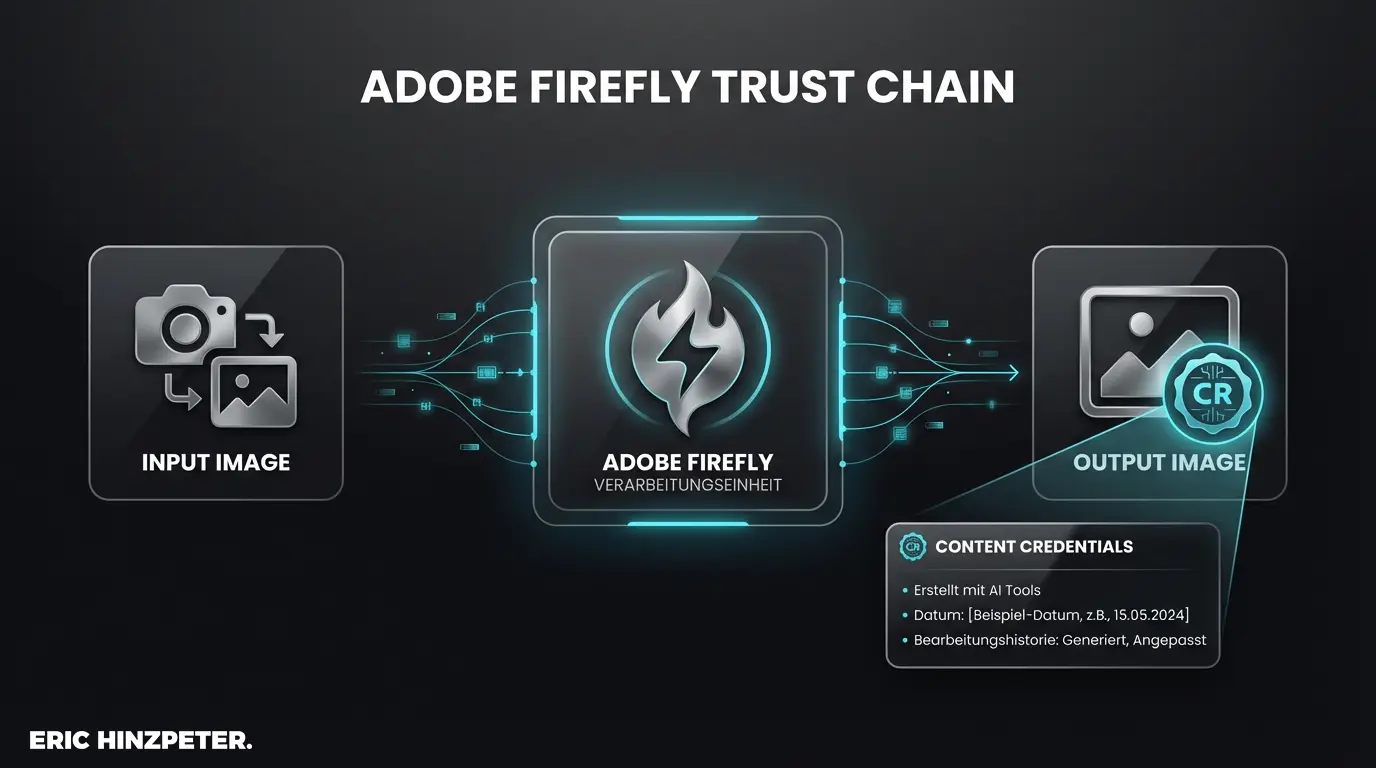
Adobe Firefly runs in the background. Unlike many open-source models, it's trained only on Adobe Stock images and other rights-cleared material.
For professional use, that's the part that matters. A central piece is Content Credentials: these digital records land in the metadata automatically and show transparently which parts of an image are AI-generated. For commercial use that's often a hard compliance requirement, not a nice-to-have.
What Neural Filters automate
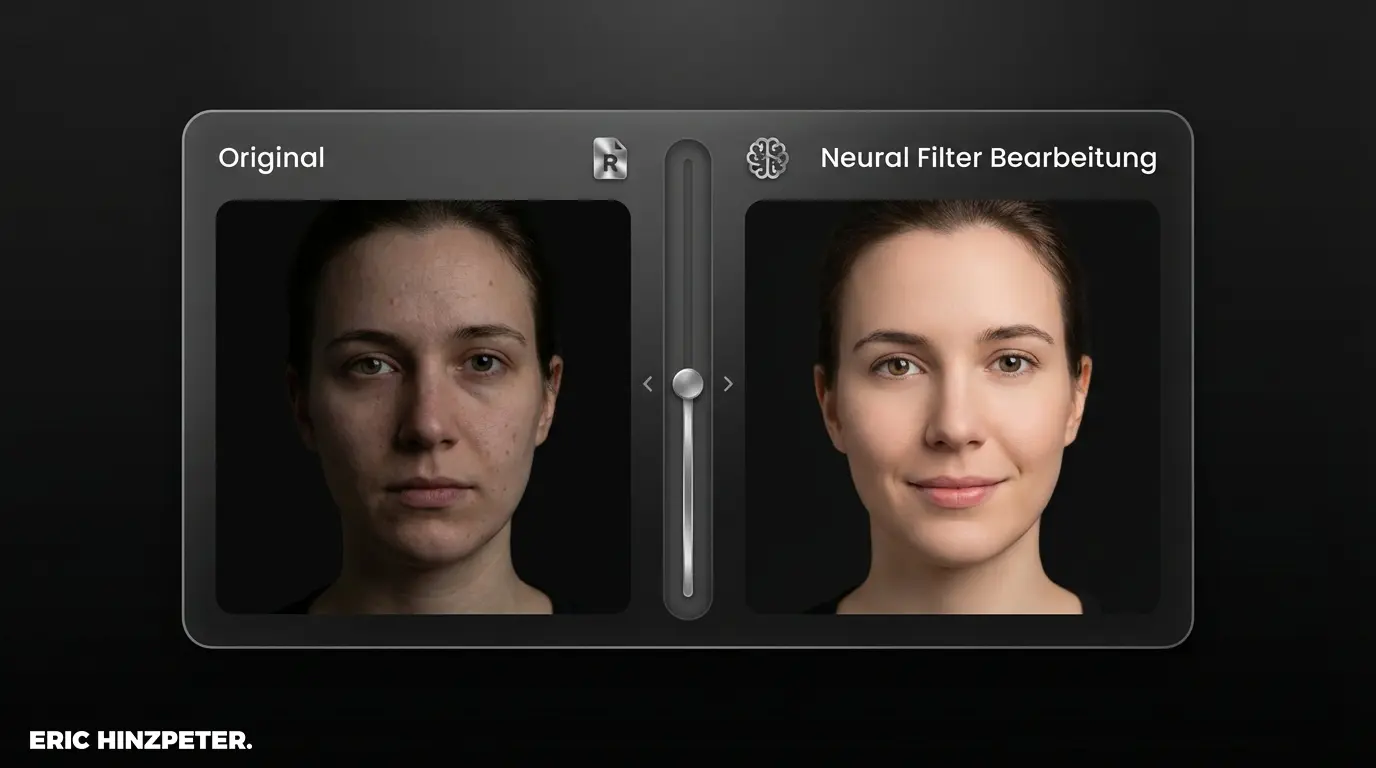
While Firefly creates new pixels, Neural Filters improve existing material with machine learning. They take over tasks that used to need elaborate masks.
Features like "Smart Portrait" or sky replacement work so precisely that there's hardly any manual cleanup left. When it's only about general image quality, noise reduction for example, the filters use cloud computing power and spare your local hardware.
How the workflow moves away from routine work
The new tools are built less for visual tricks than for the fastest route to sign-off. Two tools show that especially well.
- Generative Expand: the outpainting tool continues image content logically beyond the edge. That lets you change a format quickly, from landscape to portrait for social media, say, without the texture breaking.
- Remove tool: instead of just copying pixels, it generates new content to close gaps. On complex backgrounds it recognizes lines and continues them logically.
How to write prompts that actually land
The prompt is the interface between idea and result. Abstract terms rarely get you there, because the system needs context. Instead of "dog", a precise description like "Golden Retriever, sunset, backlight, photorealistic" leads to far fewer correction rounds.
Good prompts follow the same rules here as in any other AI tool. If you want to go deeper, the glossary entry on prompt engineering has the basic structure, and the principles carry over one to one to image prompts.
What this means for photographers and agencies
In Photoshop 2026, AI stopped being a gimmick a while ago. The business case comes from cutouts, format changes and retouching, where routine work noticeably drops away, not from new visual effects.
If you adapt your own workflows and treat prompting as a new skill, you save the most time here. If you keep working fully by hand, you'll notice mainly by comparison: the competition delivers the same quality faster and faster.
The update changes little about the output chain itself. A finished file still has to go into the right format and resolution, for example with Lightroom exports for Instagram or with my own image converter for WebP and other formats.
FAQ
- What's new in Photoshop 2026?
- The focus is on improved Firefly models for higher resolution, more precise masking and new Neural Filters for automated portrait editing.
- Is using the AI images legally safe?
- Yes. Training on Adobe Stock material and the automatic embedding of Content Credentials cover commercial use in a professional setting.
- How do I turn on the AI features?
- They're built in natively. Generative Fill shows up automatically when you make a selection, and Neural Filters sit in their own filter menu.

Eric Hinzpeter
Eric Hinzpeter, Senior B2B Content Strategist. He builds AI agents and marketing automation for production use and writes up what comes out of it here.